Tools For Parents
ESRB ratings make it easy for parents to be informed about the video games their kids play, but there’s more parents can do to stay involved and up to date. Learn how to set parental controls, start a conversation using our discussion guide, download the ESRB mobile app, and more.

Parental Controls
Parental controls are available for every device and allow you to block games and apps by rating, set time limits, manage in-game purchases, restrict access to the internet, and more.

Family Gaming Guide
This user-friendly guide will help provide you with the information you need to manage your kids’ gameplay experiences and keep peace of mind.
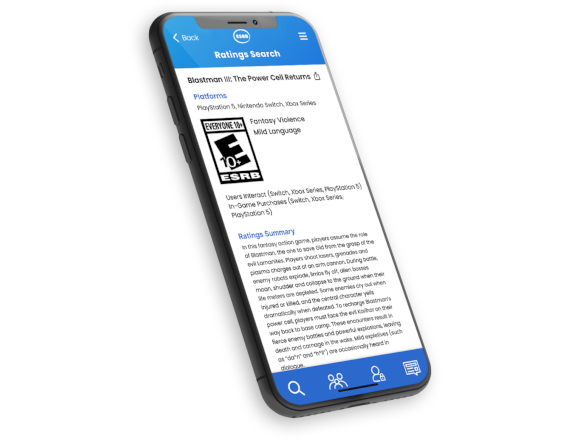
ESRB App
Use our free app to look up rating information and read rating summaries on the go.

¡Vamos a Jugar!
Las clasificaciones de ESRB facilitan que los padres estén informados sobre los videojuegos que juegan sus hijos, pero hay más cosas que los padres pueden hacer para mantenerse involucrados y actualizados.
Quick Tips
Here’s what you need to know in order to make informed choices about the games your children play.
Check the Rating
Always check the front and back of a video game box for the ESRB-assigned rating information. You can also search here, or download our free rating search app to see a game’s rating summary. Ratings for digital games and apps are displayed on digital storefronts before you buy or install. If you need more information you can also find reviews and gameplay videos online.

Have a Conversation
It’s always a good idea to have a family conversation to set some house rules about which games are appropriate, time restrictions, and how much money can be spent on in-game/app purchases. Click here for a few conversation starters.

Set Controls
Set parental controls to make sure everyone sticks to the house rules. Click here for more information.

Check for Warning Signs
Watch for inappropriate behavior if your kids play games online. You can notify a game’s publisher or online service about offenders. Also keep an eye out for warning signs of cyberbullying, like anxiety, depression, or a reluctance to go to school or hang out with friends.

Teach The Golden Rule
Be sure your kids are respectful when playing games online and on social media. Teach them to treat others as they would want to be treated.

Have Fun!
Make the time to play games with your children! It will help you better understand why they enjoy playing them so much. But most of all, it’s a great way to have fun and spend time as a family.


